Trail Effect Component
Overview
This component adds a visual trail effect to the UI object it is applied to.
WebGL Demo
Properties
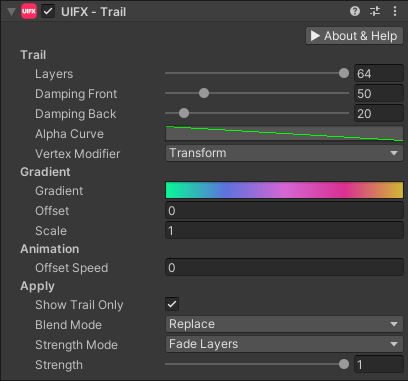
| Property | Type | Details |
|---|---|---|
| Trail | ||
| Layers | Int | The number of layers the trail has. More layers is more expensive. Default value is 16, range is [0..64]. |
| Damping Front | Float | The rate at which the front of the trail catches up with the movement. Higher value results in a less laggy trail. Default value is 50, range is [0..250]. |
| Damping Back | Float | The rate at which the back of the trail catches up with the movement. Higher value results in a less laggy trail. Default value is 50, range is [0..250]. |
| Alpha Curve | Curve | Optional curve to control transparency. Transparency can also be controlled by the gradient property, but having this secondary control is useful when the gradient is animated but you still want to apply a static transparency falloff. |
| Vertex Modifier | Enum | Which vertex modifiers are used to calculate the trail motion. Options are: • Transforms - Only use transform modifications (translation, rotation, scale), this is the simplest. (DEFAULT)• Vertices - Only use vertex modifications.• TransformsAndVertices - Use both of the above, this is the most expensive. |
| Gradient | ||
| Gradient | Gradient | The gradient colors used by the trail |
| Offset | Float | The offset applied to the gradient. The gradient will wrap using mirrored repeating. |
| Scale | Float | The scaling applied to the gradient. The gradient will wrap using mirrored repeating. |
| Animation | ||
| Offset Speed | Float | The animation speed for the offset property of the gradient. Allows easy simple scrolling animation without scripting. Set to zero for no animation. |
| Apply | ||
| Show Trail Only | Bool | Only show the trail, hide the original UI Graphic |
| Blend Mode | Enum | Which color blending mode to use to mix the original vertex colors with the gradient colors. Options are: • Source - Only use the original color, this ignores any trail gradient/alpha settings.• Replace - Ignore the original color and replace with the trail gradient/alpha settings.• Replace_Multiply - Same as Replace for RGB, but multiply the original alpha with the trail gradient alpha.• Multiply - Multiply the original color with the trail gradient/alpha settings. (DEFAULT)• Add_Multiply - Add the original color RGB to the gradient gradient, but multiply the alpha value. |
| Trail Strength Mode | Enum | The mode to use for fading out the trail when strength < 1.0. Options are: • Damping - Reduce damping so that when strength == 0.0 there is no lag in the trail.• Layers - Remove each layer, starting from the back so that when strength == 0 there are no layers visible.• FadeLayers - Same as Layers but with fading instead of a hard cut. (DEFAULT)• Fade - Fade the entire trail down at the same time. |
| Strength | Float | Strength of the effect. Default value is 1.0, range is [0..1] |
Usage
Add this component to any GameObject that contains a UI Graphic component (eg Text, Image, RawImage, etc). The object will now render with a trail that follows it as it moves.
Examples
- High Damping
- Low Damping
- Strength
- Animated Gradient
Damping can be set to a high value to make the trail follow the original motion more closely.
Damping can be set to a low value to make the trail lag further behind the original motion.
Strength can be used to transition the trail on or off.
OffsetSpeed animates the gradient.
Tutorial
Tutorial 1 - A walkthrough showing how to use this component
Examples
Demo 1 - A single Text component with a simple gradient trail
Demo 2 - A single Text component with a more exotic trail
Demo 3 - A single Text component with a very soft ghostly trail
Scripting
Namespace
using ChocDino.UIFX;
Add Component
// Add the component to your GameObject and set default properties
// NOTE: Change this to TrailEffectTMP for TextMeshPro
var trail = AddComponent<TrailEffect>();

Gradient gradient = new Gradient();
{
    GradientColorKey[] keys = new GradientColorKey[2];
    keys[0].time = 0f;
    keys[0].color = Color.white * 0.8f;
    keys[1].time = 1f;
    keys[1].color = Color.white * 0.8f;
    GradientAlphaKey[] alpha = new GradientAlphaKey[2];
    alpha[0].time = 0f;
    alpha[0].alpha = 1f;
    alpha[1].time = 1f;
    alpha[1].alpha = 0f;
    gradient.SetKeys(keys, alpha);
}
trail.Gradient = gradient;

trail.LayerCount = 16;
trail.DampingFront = trail.DampingBack= 50f;
trail.AlphaCurve = new AnimationCurve(new Keyframe(0f, 1f, -1f, -1f), new Keyframe(1f, 0f, -1f, -1f));  // AlphaCurve is optional and can be null
trail.VertexModifierSource = VertexModifierSource.Transform;
trail.GradientOffset = 0f;
trail.GradientScale = 1f;
trail.GradientOffsetSpeed = 0f;
trail.ShowTrailOnly = false;
trail.blendMode = BlendMode.Multiply;
trail.StrengthMode = TrailStrengthMode.FadeLayers;
trail.Strength = 1f;
Motion Reset
// Call ResetMotion() whenever you want to reset the trail - for example after resetting the position/transform of the object.
trail.ResetMotion();
Complete Example
using UnityEngine;
using ChocDino.UIFX;

/// Demonstrates the scripting API for the TrailEffect / TrailEffectTMP component

/// Press keys 1 to 5 to test some API functionality.

/// NOTE: The GameObject is required to have a UI component of type Graphic
[RequireComponent(typeof(Graphic))]
public class TrailExample : MonoBehaviour
{
	private TrailEffectBase _trail;

	void Start()
	{
		// Get or create the component, detecting whether to use TextMeshPro or not
		_trail = GetComponent<TrailEffect>();
		if (_trail == null)
		{
			#if TMP_PRESENT
			if (GetComponent<TMP_Text>() != null)
			{
				_trail = GetComponent<TrailEffectTMP>();
				if (_trail == null)
				{
					_trail = AddComponent<TrailEffectTMP>();
				}
			}
			else
			#endif
			{
				_trail = AddComponent<TrailEffect>();
			}
		}
	}

	void Update()
	{
		// Keys 1..5 demonstrate some API functionality
		if (Input.GetKeyDown(KeyCode.Alpha1))
		{
			_trail.LayerCount = 16;
		}
		else if (Input.GetKeyDown(KeyCode.Alpha2))
		{
			_trail.LayerCount = 64;
		}
		else if (Input.GetKeyDown(KeyCode.Alpha3))
		{
			_trail.GradientOffsetSpeed = 0f;
		}
		else if (Input.GetKeyDown(KeyCode.Alpha4))
		{
			_trail.GradientOffsetSpeed = 0.2f;
		}
		else if (Input.GetKeyDown(KeyCode.Alpha5))
		{
			_trail.ResetMotion();
		}
	}
}